How to Check & Add Baggage Allowance on Trip.com

After booking your flight on Trip.com, an important task is to ensure that your baggage allowance meets your needs.
If you need to check the included baggage allowance or add extra baggage, Trip.com makes it easy. ✅
I will guide you through each step to check or add baggage allowance using the Trip.com app. 👀
HOW TO CHECK OR ADD TRIP.COM BAGGAGE ALLOWANCE
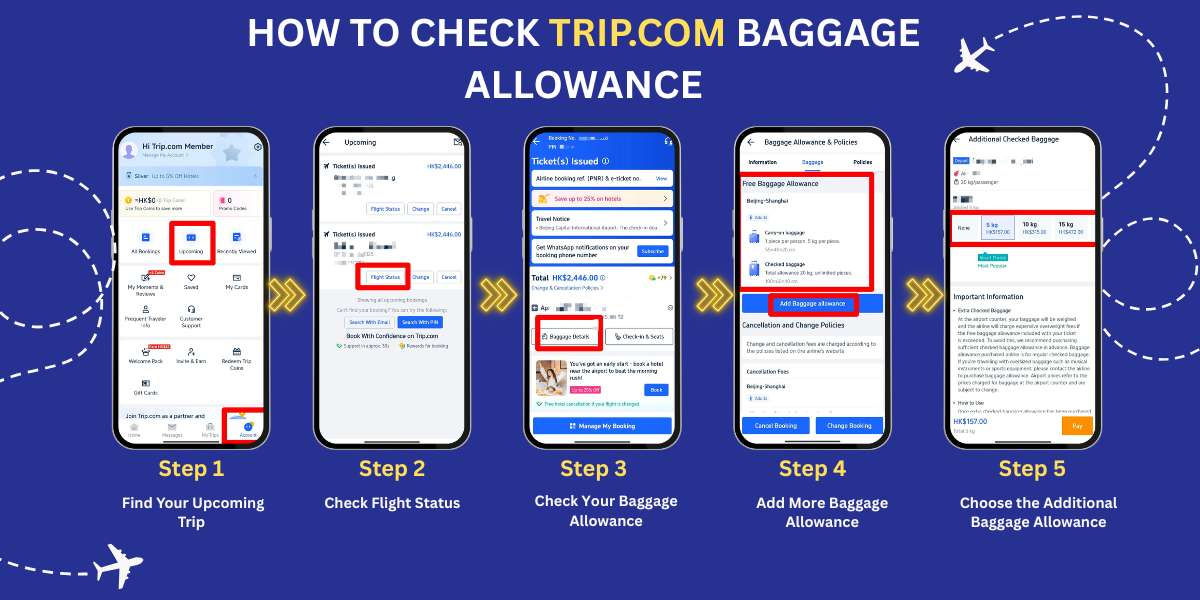
Step 1: Find Your Upcoming Trip
- Open the Trip.com App: Start by opening the Trip.com app on your phone.
- Tap the Account Icon: At the bottom of the screen, you'll see an icon labeled Account. Tap on it to go to your account page.
- Locate the "Upcoming" Section: On your account page, there is a button in the center that says Upcoming. Tap this to view your upcoming trips.
Step 2: Check Flight Status
- Select Your Flight: You will see a list of flights you have booked. Find the one you want to check and tap on it.
- Review Ticket Information: After selecting your flight, you will see basic details about your ticket.
- Tap "Flight Status": To view more information, tap on the Flight Status button.
Step 3: Check Your Baggage Allowance
- Find Baggage Details: On the next page, which shows more detailed ticket information, look for a button labeled Baggage Details. Tap it to view your baggage allowance.
- View What’s Included: On the Baggage Details page, you will see the amount of free baggage included with your ticket. This will show both carry-on and checked baggage allowances, such as the number of bags and weight limits.
- Check the Free Baggage Allowance: For example, it might state that you are allowed one carry-on bag up to 5 kg and checked baggage up to 20 kg.
Step 4: Add More Baggage Allowance
Tap "Add Baggage Allowance": If you need additional baggage, tap the Add Baggage Allowance button on the Baggage Details page.
Step 5: Choose the Additional Baggage Allowance You Want
- Select Extra Baggage: You will see different options for adding more baggage. You can choose how many additional kilograms you need, and the app will show you the cost for each option.
- Smart Choice Option: The app may suggest a Smart Choice option, which is a popular baggage allowance selection chosen by other travelers.
Tips on Baggage Allowance

Baggage is weighed when passengers check in at the airport. (from Wikipedia)
- Avoid Extra Charges: Keep in mind that your bags will be weighed at the airport. If your baggage exceeds the allowance included with your ticket, you may be required to pay high fees. It's better to add extra baggage through the app before your flight to avoid this.
- Special Baggage: If you're bringing large items such as musical instruments or sports equipment, contact the airline directly. These items may require additional baggage allowance, and the fees at the airport can be significantly higher.
Start Your Journey with Trip.com Today!
Trip.com is a global online travel agency offering 24/7 customer support in multiple languages. It provides convenient booking services for flights, hotels, tours, and activities.
Trip.com also offers a membership program with different tiers and benefits. Depending on your membership level and applicable promotions, you may enjoy perks such as earning more Trip Coins, receiving additional discounts, and accessing selected travel benefits. Available rewards and privileges may vary by region and membership conditions.