How to Change Flight


Have you booked your flight on Trip.com but now need to change your travel plans? In this article, we’ll explain how to change your flight ticket 👀
Can I Change a Flight on Trip.com?

Yes, you can change your Trip.com flight ticket, subject to the airline or agent’s rules. If you have already checked in, you may need to cancel your check-in before making any changes. Check your flight’s change policy for applicable fees and restrictions.
It may seem complicated, but we’ll guide you step by step ✅
Trip.com Change Flight | Step 1: Find Your Booking on My Trips
- Open the Trip.com mobile app on your mobile devices, log in to your account.
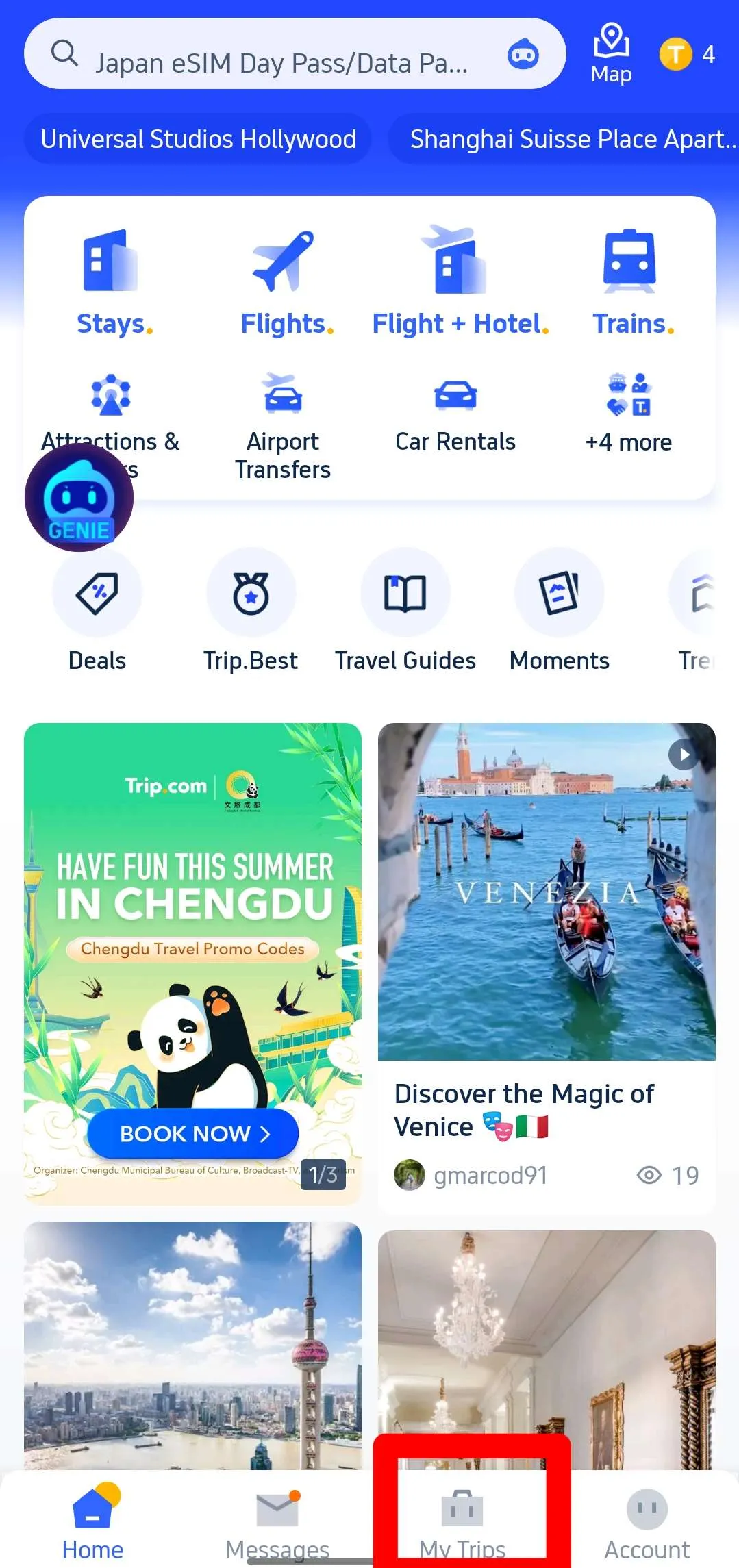
- Tap 'My Trips' at the bottom of the Trip.com app to view the details of your bookings.
- All your bookings are clearly displayed by date and time on My Trips page.
Step 2: Go to Manage My Booking and Change Booking
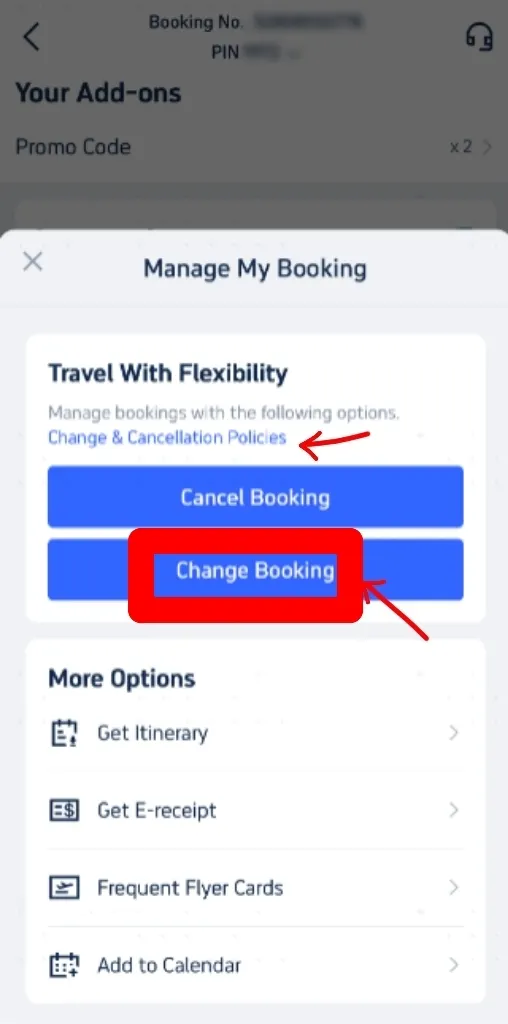
- Select the ticket you want to change from your booking history. Go to the reservation page for your booking and click "Manage My Booking".
- You can find Trip.com ticket change fees and cancellation rules by clicking on 'Cancellation & Change Policies'.
- On the 'Manage My Booking' screen, select 'Change Booking' to proceed to the change request page. Here, you can review these policies again.
Step 3: Enter your info on the 'Change Request' page
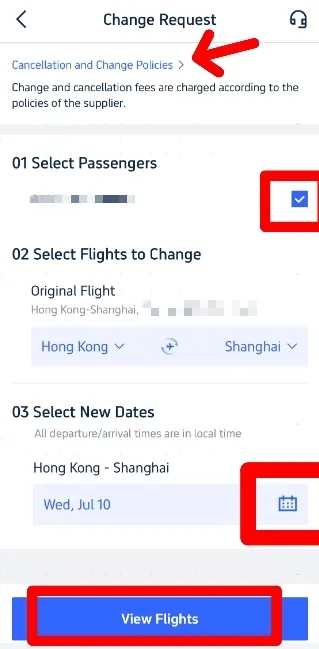
- On the 'Change Request' page, Choose the passengers who need to change their flight.
- Confirm it’s the original flight you want to change and select new travel dates by clicking the calendar button.
- Once you have entered all the information, click on 'View flights'.
Step 4: Select New Flights
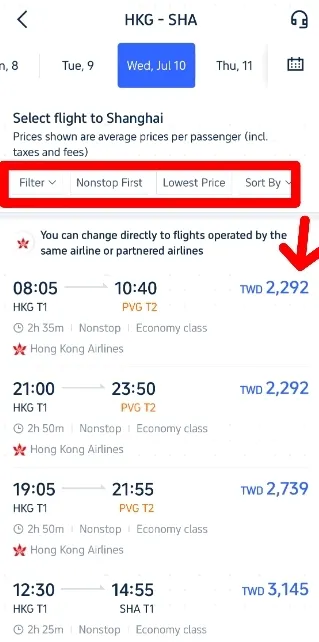
- On the next page, browse the available flights and select the one you prefer.
- Use filters such as ‘Non-stop’ or ‘Lowest Price’ to select your desired flight. Ensure the new flight is operated by the same airline or partner airlines.
- Tap the flight you want to change, then select Economy or Business Class and choose your preferred option.
Step 5: Confirm Your Booking
- After selecting your flight, proceed to confirm your new booking details on My Booking page.
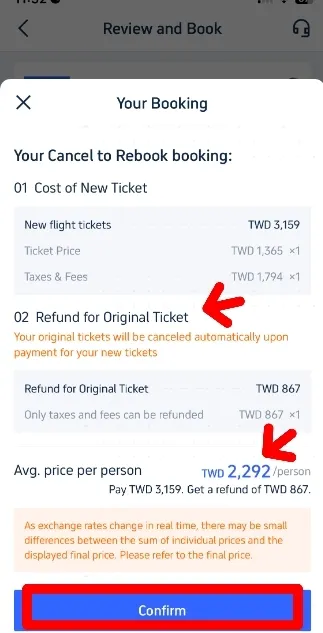
- Check the Refund for Original Ticket against the cost of the new ticket. The final price will be calculated accordingly. 👇👇
- If the new flight cost is acceptable, 'Confirm' your selection and proceed to payment. Once payment is made, you’ll receive confirmation of your updated booking. Verify all details are correct.
- Once confirmed, you will receive a new booking confirmation email and a refund confirmation email. The actual timing of the refund will depend on your bank/card issuer.
How to Change a Flight on Trip.com Website
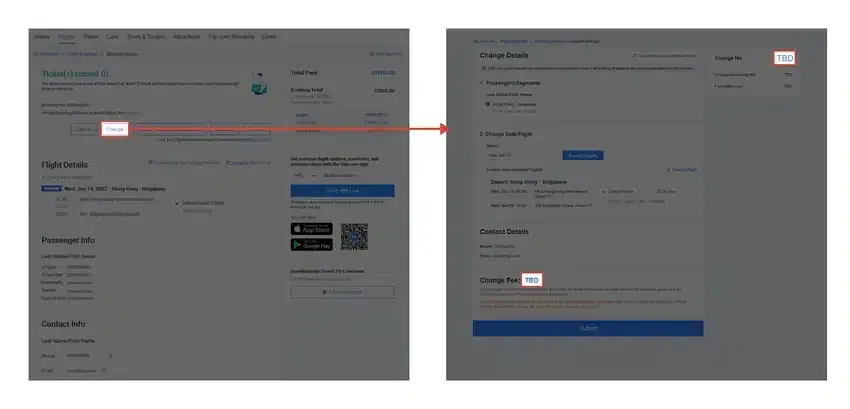
Step 1: Access Your Bookings
Go to your Trip.com bookings and find the flight you want to change. Click on it to open the booking details.
Step 2: Start the Change Process
Click “Change”, then go to “Change Date / Flight”. Use the search function to look for new flight options. (Refer to the screenshot for guidance.)
Step 3: Choose Your New Flight
Select your preferred flight from the available options and follow the on-screen instructions to proceed.
Step 4: Review and Confirm Fees
Any change fees will appear in the “Change Fee” section of your booking. Make sure to review them before confirming your new flight.
Notes on Trip.com Flight Changes
- Passengers and airlines cannot be changed
You can modify your booking, but changing the passenger or airline isn’t allowed. To do so, you’ll need to cancel and book a new ticket. - Change fees may increase near departure
The closer you are to your flight date, the higher the change fee may be. Changes cannot be made after the departure time. - No refund of change fees after cancellation
If you cancel a booking that has already been changed and incurred a fee, the change fee won’t be refunded. Any fare difference refund will be handled by the airline or agent.
Why Book Flights on Trip.com?
Save & Earn
Join as a member to get exclusive discounts and earn Trip Coins, usable like cash.
Global Reach
Trusted by 400+ million travellers, with over 680 airline partners across 39+ countries.
Fast Support
Phone support usually answers within 30 seconds.
App-Exclusive Deals
Book on the app for instant savings and special flight offers.