Trip.com E-Ticket | Instant Digital Flight Ticket Guide


What is an E-Ticket on Trip.com?
An e-ticket on Trip.com is the digital equivalent of a traditional paper ticket, available for purchase through the Trip.com website or mobile app. It acts as a contract between you and the airline or train operator, securely storing all necessary travel details. With an e-ticket, printing is not usually required; you can use your PNR (Passenger Name Record) or booking reference number, along with your passport or ID, to check in and pass through security.
Do I Need to Print My E-Ticket?
For most domestic flights, hotels, and train journeys, a printed e-ticket is generally not necessary. However, keeping a digital copy on your device is recommended. For international travel, it is advisable to carry a printed copy of your e-ticket to present at various checkpoints if needed.
How to Use an E-Ticket on Trip.com

1. Booking:
Book your flight, hotel, or train ticket through the Trip.com website or app to enjoy great deals. Make sure all your details, including your name and ID number, are entered correctly.
2. Receiving Your E-Ticket:
After booking, your e-ticket will be sent to your email. You can also view and download it from the Trip.com app. For detailed instructions, see How to Get an E-Ticket on Trip.com.
3. Checking In:
- Flights: Use your PNR or booking reference number at the airline’s check-in counter or during online check-in.
- Trains: Use your e-ticket according to the local railway operator’s instructions. Some systems require scanning a QR code or barcode, while others may require ID verification or ticket checks by staff.
4. Boarding:
Present your e-ticket—either on your device or as a printed copy—at the boarding gate.
- Flights: Have your passport or ID ready for verification.
- Trains: Scan your passport or valid ID at the ticket check gate.
How to Get an E-Ticket on Trip.com
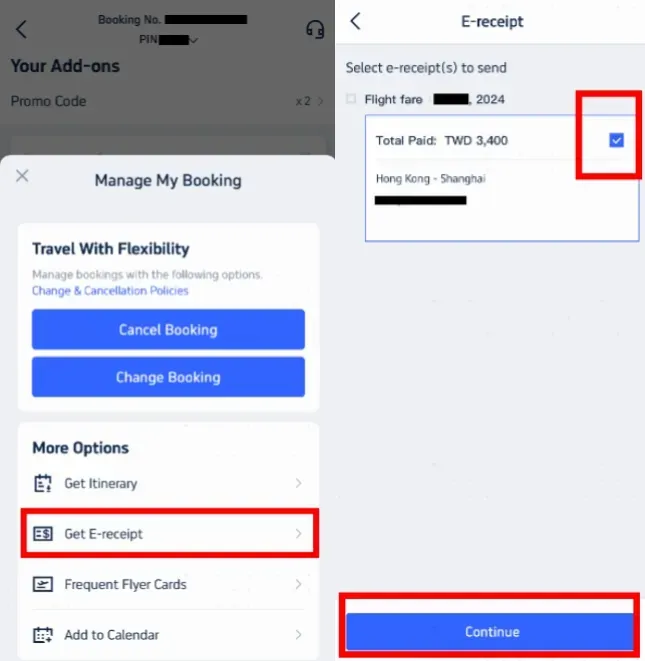
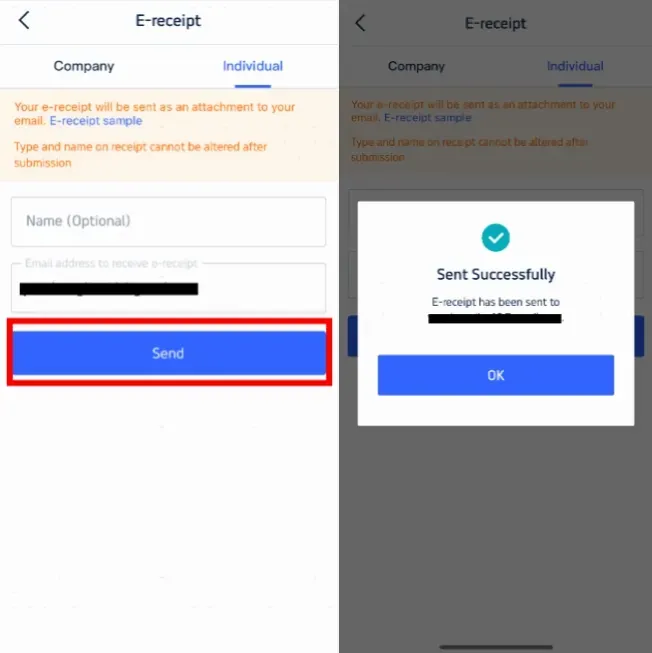
| Step | Action |
|---|---|
1. Select Your Booking | Log in to your Trip.com account and go to your bookings. Select the order you want to view. |
2. Request the E-Ticket | Look for the option to view, download, or request your e-ticket/e-receipt from the booking details page. |
3. Receive Your E-Ticket | Follow the instructions provided to receive your e-ticket, which may be available digitally or sent to your registered email address. |
How to Print an E-Ticket on Trip.com
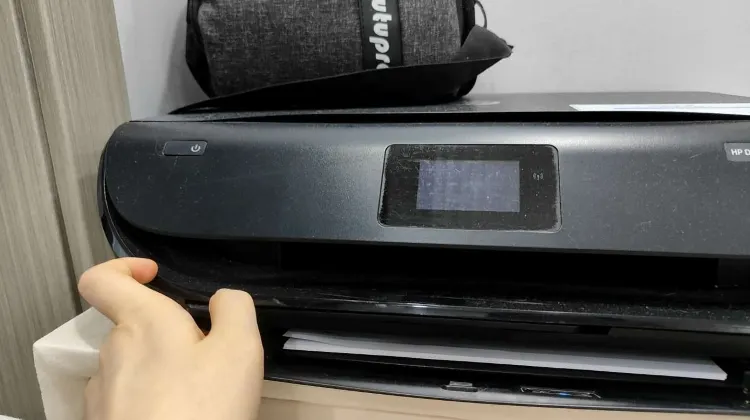
1. Download the E-Ticket:
Open the email from Trip.com containing your e-ticket and download the attached file to your device.
2. Print the E-Ticket:
Open the downloaded file and use your printer to print a copy of your e-ticket.
3. Carry the Printed E-Ticket:
- International flights: Bring the printed e-ticket along with your passport to the airport.
- Domestic travel: Printing is optional, but having a copy is recommended.